




Lesson
Navigating Through Major Features of Rhino 3D
Completion requirements
View
Go through the activity to the end
Receive a grade
Receive a passing grade
By the end of this session, students should be able to:
- identify the major features of Rhino 3D.
- navigate around the scene and use different ways of displaying your model.
- identify different geometry types in Rhino, each is better suited for different design goals.
- select and filter objects is essential for effective modeling.
Manual
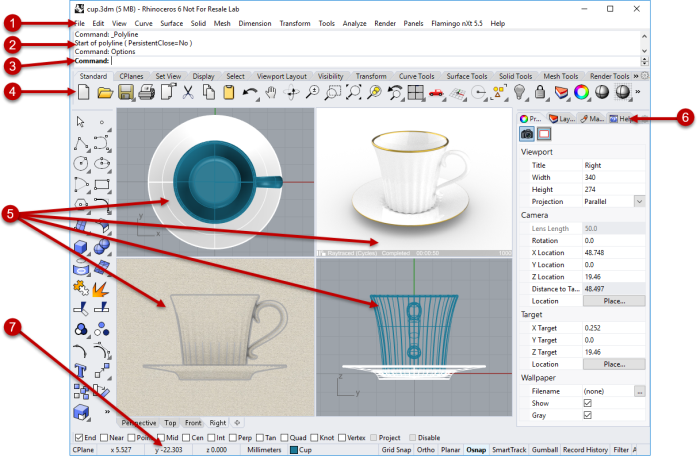
Menu (1)
The menus group Rhino commands by function.
History window (2)
The command history window displays the previous commands and prompts.
Command prompt (3)
The command prompt displays prompts for the current command actions, options for the command that you can click, and allows typing command names and options.
Toolbars (4)
Toolbars contain graphical icons for initiating commands. Many toolbar icons have a second command that you can access by right-clicking the icon. The tooltip that appears when you hover over the icon tells you what the left and right mouse button do.
 To access the command on the first line
- Click the icon with the left mouse button.
 To access the command on the second line
- Click the icon with the right mouse button.
Viewports (5)
Viewports display the Rhino working environment.
Panels (6)
Tabbed panels contains layers, properties, and other settings.
Status bar (7)
The status bar is located at the bottom of the Rhino window. It displays the current coordinate system, the cursor location, and system unit. It also provides quick access to layers and toggles of modeling aids.